
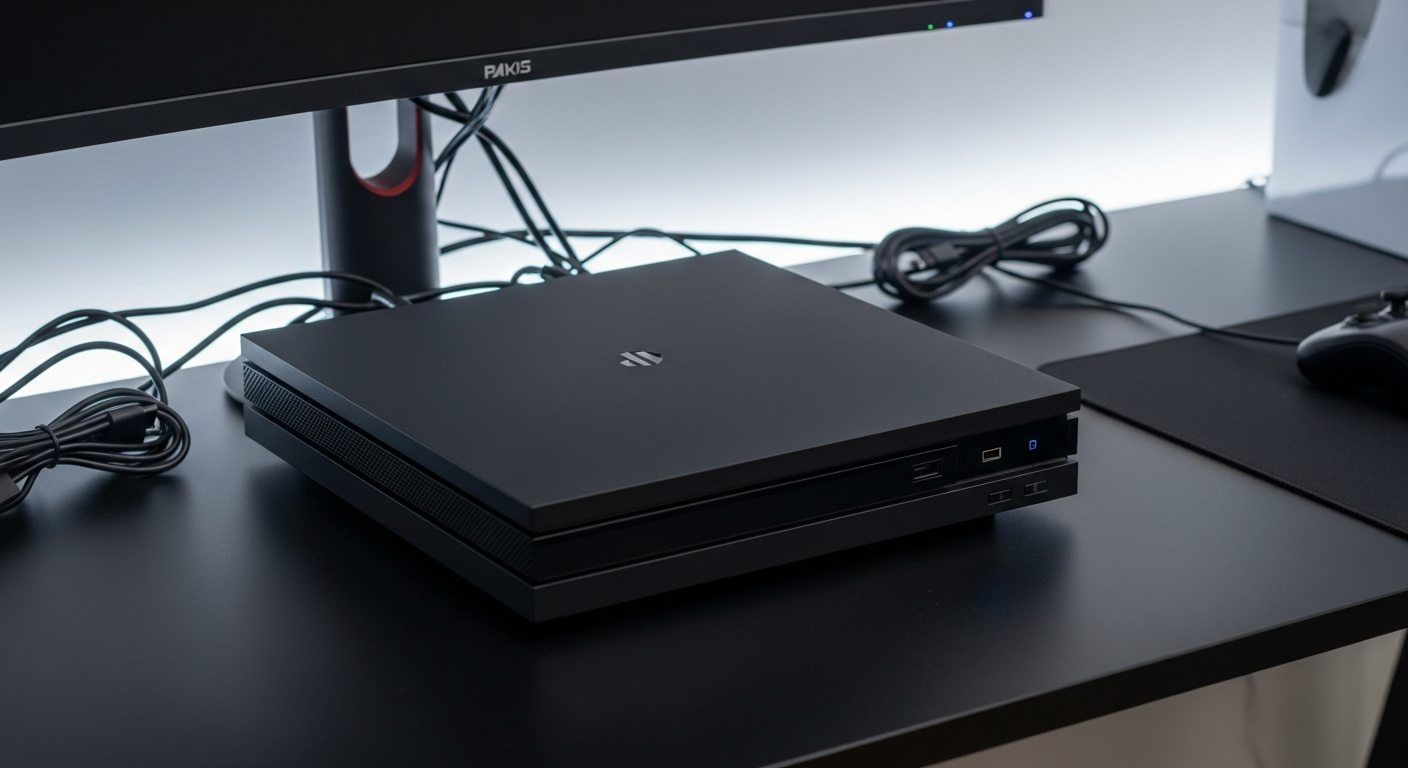
Congratulations on your new gaming console! Getting started might seem a bit much, but we're here to guide you through every step.
This guide will help you unbox, set up, and start playing your new console with ease, even if you're completely new to gaming.
1. What's in the box when I buy a new console?
When you open your console box, you'll typically find the console itself, which is the main gaming machine. You'll also get at least one controller, which is what you use to play games. Look for power cables to plug the console into an electrical outlet and an HDMI cable to connect it to your TV.
Sometimes, you might also find a game included, or a code to download one. There will also be some instruction manuals, which can be helpful for initial setup.
2. How do I connect my console to my TV?
First, plug one end of the HDMI cable into the "HDMI Out" port on the back of your console. Next, plug the other end of the HDMI cable into an available "HDMI In" port on your TV. These ports are usually on the back or side of your TV.
Then, use your TV remote to select the correct HDMI input. It might be labeled "HDMI 1," "HDMI 2," or "Game." Once selected, you should see your console's startup screen.
3. How do I connect my console to the internet?
Connecting to the internet is crucial for downloading games and playing online. You have two main options: Wi-Fi or a wired connection. For Wi-Fi, go to your console's settings menu, find "Network" or "Internet Settings," and select your home Wi-Fi network from the list. You'll need to enter your Wi-Fi password.
For a wired connection, plug an Ethernet cable from your internet router directly into the "Ethernet" port on your console. This usually provides a more stable connection.
Wi-Fi Connection
- Wireless and convenient
- Easy setup
- Can be slower or less stable
Wired (Ethernet) Connection
- Faster and more stable
- Better for online gaming
- Requires a cable to your router
4. Do I need to create an account to play games?
Yes, almost all modern gaming consoles require you to create a user account. This account is free and links your games, saves, and online identity to your console. It's how you access the console's online store and manage your purchases.
During the initial setup, your console will prompt you to create a new account or sign in if you already have one. Make sure to choose a strong password and remember your login details.
5. How do I download my first game?
Once your console is connected to the internet and you've created an account, you can visit the console's digital store. This is usually an icon on the main menu labeled "Store," "Shop," or similar. Browse for games, select one you want, and choose to "Purchase" or "Download."
Free games and demos are a great way to start without spending money. Purchased games will automatically begin downloading to your console's storage. You can usually see the download progress on your console's home screen.
6. What are system updates and why are they important?
System updates are like software improvements for your console. They are released by the console manufacturer to fix bugs, improve performance, add new features, and enhance security. Your console will often prompt you to download and install these updates when they become available.
It's very important to install system updates. They ensure your console runs smoothly, keeps your data safe, and allows you to play the latest games and access online features. Often, games won't even start if your console isn't fully updated.
7. How do I set up my first controller?
Your console's controller usually needs to be "paired" with the console before you can use it wirelessly. First, make sure the controller is charged or has fresh batteries. Then, connect the controller to the console using the USB cable provided in the box. This usually pairs it automatically.
Once connected, press the main "Home" or "Guide" button on the controller. The console should recognize it, and you can then disconnect the USB cable to use it wirelessly. Future connections will typically be automatic.
Controller Setup Flow
- Charge Controller
- Connect USB Cable (Controller to Console)
- Press Home/Guide Button
- Wait for Console Recognition
- Unplug USB Cable (Optional)
- Start Playing!
8. Can I transfer data from an old console?
If you're upgrading from an older version of the same console brand (e.g., PlayStation 4 to PlayStation 5, Xbox One to Xbox Series X), you can often transfer game saves, profiles, and even some digital games. The process varies by console.
Look for a "data transfer" option in your new console's settings menu during initial setup or later. You might need to connect both consoles to the same network or use an external hard drive. Check your console's official support website for specific instructions.
9. What are parental controls and how do I set them up?
Parental controls are features that allow you to manage what games can be played, how long someone can play, and what online features can be accessed. They are essential for families with younger players.
You can usually find parental controls in your console's system settings under a section like "Family Management" or "Parental Controls." You can set age restrictions for games, limit screen time, and restrict online communication. Always set a PIN or password for these controls.
10. Where can I find help if I get stuck?
Don't worry if you run into issues! The first place to look is your console's official support website. They have extensive FAQs, troubleshooting guides, and sometimes even live chat support. You can usually find a link to this site in your console's manual or by searching online for "[Console Name] Support."
Online communities and forums are also great resources where other players can offer advice. Just remember to be specific about your problem when asking for help.