
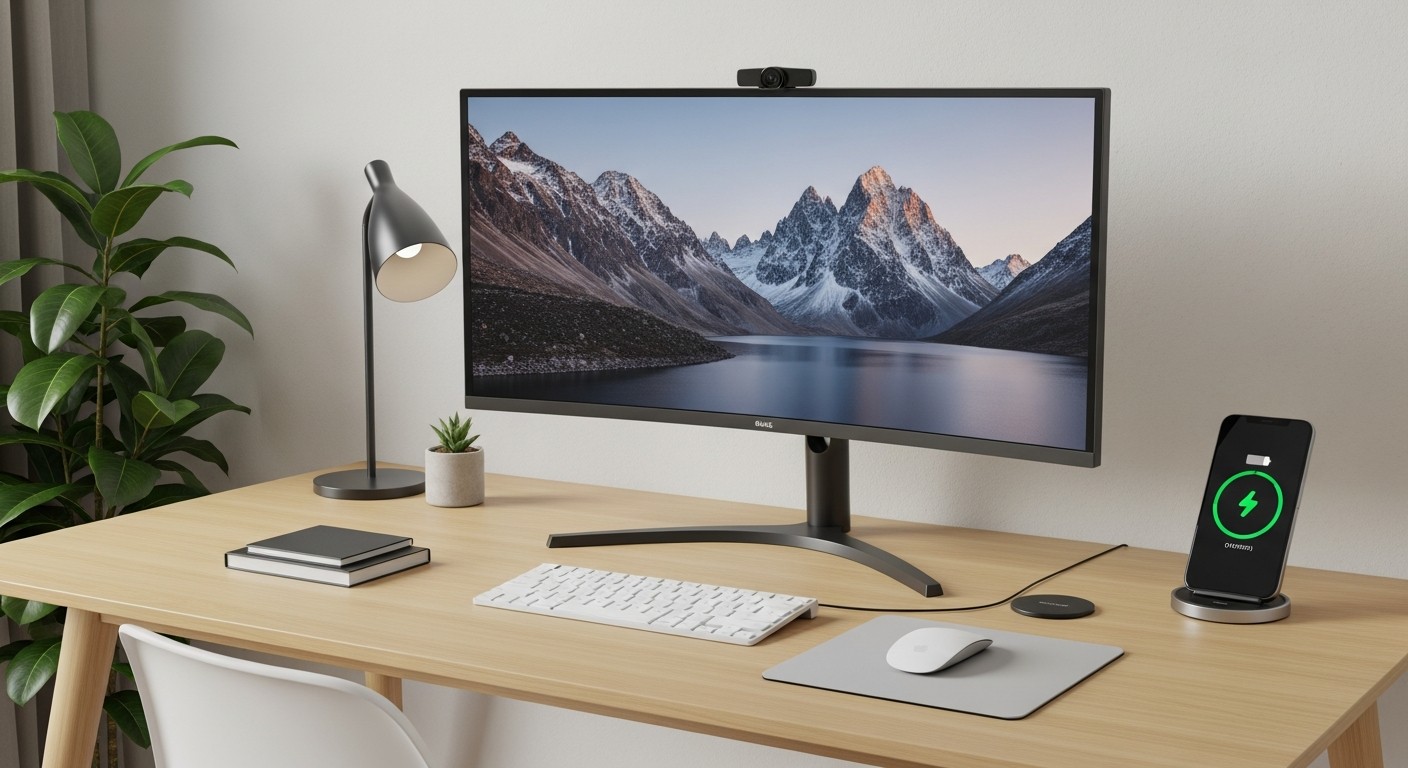
Working from home, often called WFH, has become very common. To make sure you're set up for success, it's helpful to know what technology you'll need.
1. What is the most important piece of tech for WFH?
Your computer is the absolute core of your home office. It's where you'll do most of your work, from writing emails to joining video meetings. Think of it as your main workstation.
Whether it's a laptop or a desktop, a reliable computer ensures you can access all your work tools and communicate with your team effectively. It's the foundation for everything else you do.
2. Do I need a powerful computer?
Not necessarily a super-powerful one, but a modern computer is best. If your work involves basic tasks like emails, documents, and video calls, a standard laptop or desktop purchased in the last 3-5 years should be fine.
However, if your job requires demanding tasks like video editing, graphic design, or complex data analysis, then a computer with more processing power, memory (RAM), and storage will be a wise investment.
3. What kind of internet speed is recommended?
A stable and reasonably fast internet connection is crucial. For most WFH tasks, a download speed of at least 50 Mbps (megabits per second) and an upload speed of 10-20 Mbps is a good starting point.
If multiple people in your household are also working or streaming, consider higher speeds like 100-200 Mbps download. A strong Wi-Fi signal or even a wired connection to your router will also improve reliability.
Basic WFH Internet
- Download: 50 Mbps
- Upload: 10 Mbps
- Good for: Emails, documents, occasional video calls.
Advanced WFH Internet
- Download: 100-200+ Mbps
- Upload: 20-50+ Mbps
- Good for: Frequent video calls, large file transfers, multiple users.
4. Is a separate webcam necessary?
Most modern laptops have a built-in webcam, which is perfectly adequate for many video calls. However, a separate, external webcam often offers better picture quality, especially in low light.
An external webcam can also be positioned more flexibly, allowing for better angles and framing. If you frequently attend important video meetings or presentations, it's a worthwhile upgrade.
5. Which headphones are best for calls?
Headphones with a built-in microphone are essential for clear communication. They help you hear others better and ensure your voice is clear, reducing background noise for everyone else.
Look for "noise-canceling" headphones if your home environment is noisy. Both wired and wireless (Bluetooth) options work well; wireless offers more freedom of movement.
6. Should I use a docking station?
A docking station is a hub that connects your laptop to multiple accessories like an external monitor, keyboard, mouse, and charger with just one cable. It's incredibly convenient for a tidy workspace.
If you use several peripherals or want to easily connect and disconnect your laptop from your home setup, a docking station can greatly simplify your daily routine and reduce cable clutter.
7. What backup solutions are available?
Protecting your work is critical. Cloud storage services like Google Drive, Dropbox, or OneDrive automatically save your files online, making them accessible from anywhere and safe from local computer issues.
For an extra layer of security, consider an external hard drive for local backups. Regularly saving your important documents ensures you won't lose valuable work if your computer fails.
Data Backup Flow
1. Work on Files
Create and edit documents, spreadsheets, etc. on your computer.
2. Cloud Sync
Files automatically upload to online storage (e.g., Google Drive).
3. Local Backup (Optional)
Periodically copy important files to an external hard drive.
4. Data Secure!
Your work is protected from loss or computer failure.
8. Are there any must-have software tools?
Beyond your company's specific software, essential tools include a good web browser (like Chrome or Firefox), a reliable office suite (Microsoft 365 or Google Workspace), and a communication app (Slack, Teams, Zoom).
Antivirus software is also crucial to protect your computer from online threats. Many companies provide these tools, but ensure you have the basics covered for productivity and security.
9. How do I keep my devices charged?
Reliable power is key. Ensure you have enough power outlets near your workspace. A power strip with surge protection is highly recommended to protect your electronics from power spikes.
Keep chargers for your laptop, phone, and any other wireless devices easily accessible. Consider a portable power bank for your phone if you move around your home frequently.
10. What about a reliable printer?
In today's digital world, many tasks are paperless, so a printer might not be essential for everyone. Check with your employer if printing documents is a regular part of your job.
If you do need one, a basic inkjet printer is usually sufficient for occasional documents. For higher volume or professional quality, a laser printer might be a better choice.