
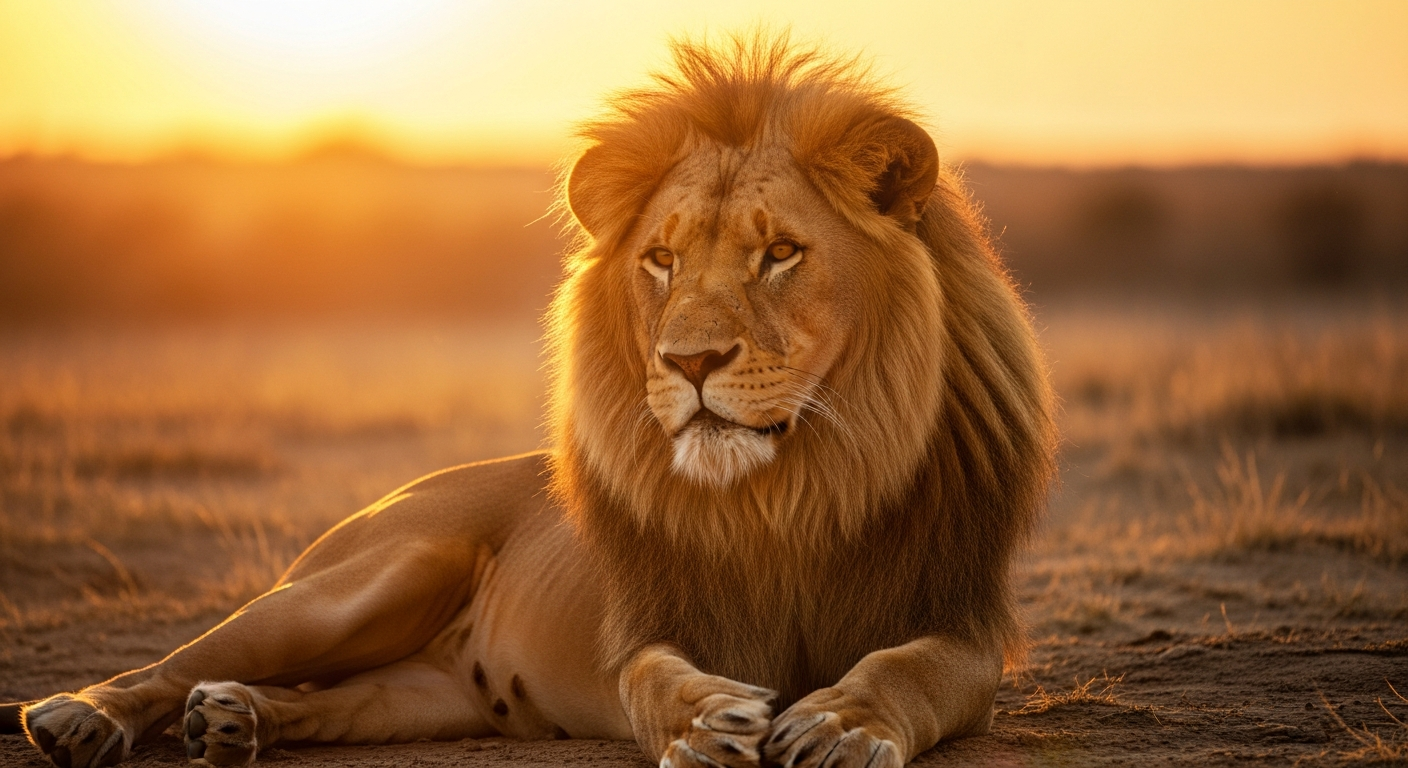
Are your photos looking a little dull or not quite right? Photo editing can help make your pictures shine without needing expensive software or special skills.
1. What is photo editing and why do I need it?
Photo editing means making changes to a picture to make it look better. Think of it like touching up a painting. You might want to fix bad lighting, remove unwanted objects, or just make colors pop. You need it to make your photos look professional, shareable, or simply more appealing to you and others.
2. Which free photo editing software is best for beginners?
For beginners, web-based tools are often the easiest. Pixlr X and Fotor are great choices because they work in your internet browser, so you don't need to download anything. They have simple layouts and easy-to-understand buttons for common tasks. GIMP is powerful but has a steeper learning curve.
3. How do I crop and resize an image?
Cropping means cutting out unwanted edges of a photo, like trimming a physical picture. You'll usually find a "Crop" tool, often shaped like two overlapping right angles. Resizing means changing the overall size of the image, making it bigger or smaller. Look for a "Resize" or "Dimensions" option, usually found in a "Tools" or "Image" menu. You'll enter new width and height numbers.
Cropping
Purpose: Remove unwanted parts, improve composition.
Outcome: Changes the picture's frame.
Example: Cutting out a distracting background.
Resizing
Purpose: Change overall pixel dimensions.
Outcome: Makes the picture physically larger or smaller.
Example: Making a photo smaller for email.
4. What are common adjustments like brightness and contrast?
Brightness makes your photo lighter or darker overall. Contrast makes the dark parts darker and the light parts lighter, making the image "pop" more. Other common adjustments include Saturation (how vivid or dull colors are) and Exposure (the overall lightness, similar to brightness but often more subtle). These are usually found under "Adjustments" or "Enhance" menus.
5. How can I remove red-eye from my photos?
Red-eye happens when a camera flash reflects off a person's retina, making their eyes look red. Most free editing tools have a "Red-Eye Removal" tool. You simply select this tool and click or drag a box over the red part of the eyes. The software then automatically fixes the color. It's usually a one-click solution.
6. Is it possible to fix blurry photos with free tools?
While free tools can't magically make a very blurry photo perfectly sharp, they can sometimes improve slightly blurry images. Look for tools like "Sharpen" or "Clarity." These tools work by enhancing the edges and details in your photo, making it appear less soft. Be careful not to overdo it, as too much sharpening can make photos look grainy or unnatural.
7. What are filters and how do I use them?
Filters are pre-set combinations of adjustments that change the overall look and feel of your photo with one click. They can make a photo black and white, add a vintage feel, or boost colors. You usually find a "Filters" or "Effects" menu where you can browse different options and preview how they'll look before applying them. It's an easy way to give your photos a consistent style.
Applying a Filter
- Open PhotoLoad your image into the editor.
- Find "Filters"Look for "Filters" or "Effects" menu.
- Browse & SelectClick on different filters to preview.
- Apply & AdjustChoose your favorite, adjust strength if available.
- Save PhotoSave your newly styled image.
8. How do I save my edited photos?
After editing, you need to save your work. Look for a "Save," "Download," or "Export" button, often found in the top menu or as an icon. You'll usually be asked to choose a file format (like JPEG or PNG) and a quality setting. It's a good idea to save your edited photo with a new name so you don't overwrite your original picture.
9. Can I edit photos on my phone for free?
Yes, absolutely! Many free photo editing apps are available for smartphones and tablets. Google Photos, Snapseed (also from Google), and Adobe Lightroom Mobile (free version) are excellent choices. These apps offer many of the same basic editing features as desktop tools, like cropping, filters, and color adjustments, all optimized for touchscreens.
10. What's the difference between JPEG and PNG?
JPEG (Joint Photographic Experts Group) is a common file format best for photographs. It uses "lossy" compression, meaning it makes the file size smaller by slightly reducing image quality, which is usually unnoticeable. PNG (Portable Network Graphics) is better for images with sharp lines, text, or transparent backgrounds. It uses "lossless" compression, meaning no quality is lost, but files are often larger. For most photos, JPEG is fine.